
Help customers find the right product faster
In short
- Your category pages get a filter built from the specifications of the products in them, such as size, colour or range.
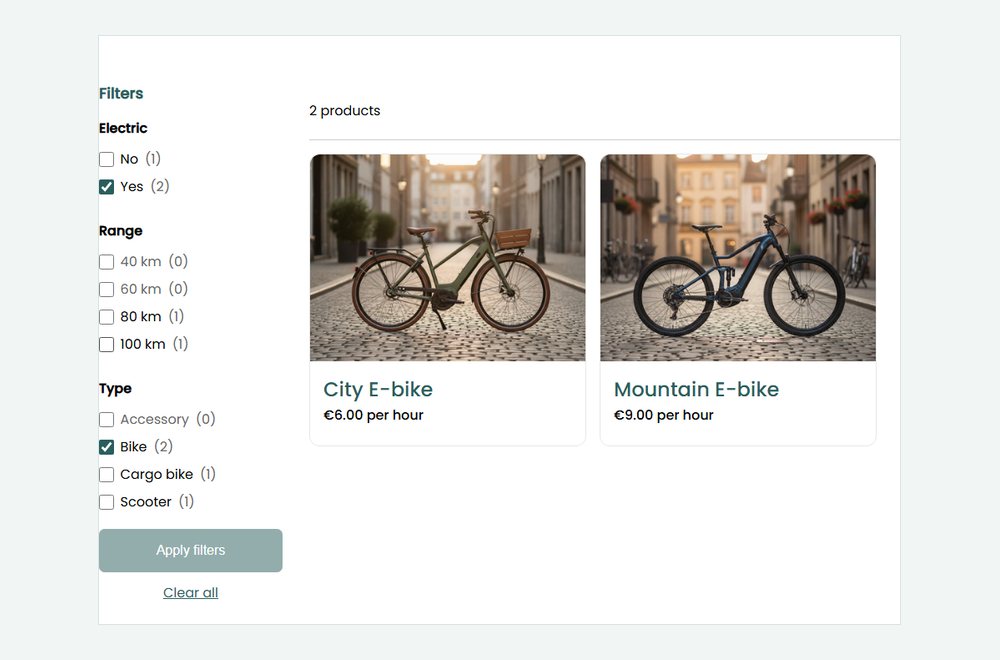
- Customers tick what they need and see only the products that fit, with a count per choice. On a phone, the filter opens with a button.
- You switch the product filter on under Integrations, and choose per specification whether it appears as a filter.

Why a product filter matters
In a category with many products, customers scroll and compare until they give up. A filter lets them say what they need, and shows only what fits.
Built from your specifications
The filter uses the specifications you already gave your products, and variants such as sizes. There is no extra list to keep up to date.
A count per choice
Every value shows how many products have it, taking the other choices into account. Values without a match are greyed out.
Works on every screen
On a computer the filter sits next to the products. On a phone, customers open it with a Filters button.
How Be-Bookable solves it
- Switch it on. Under Integrations, open the Product filter card and switch it on. From then on, your category pages show the filter.
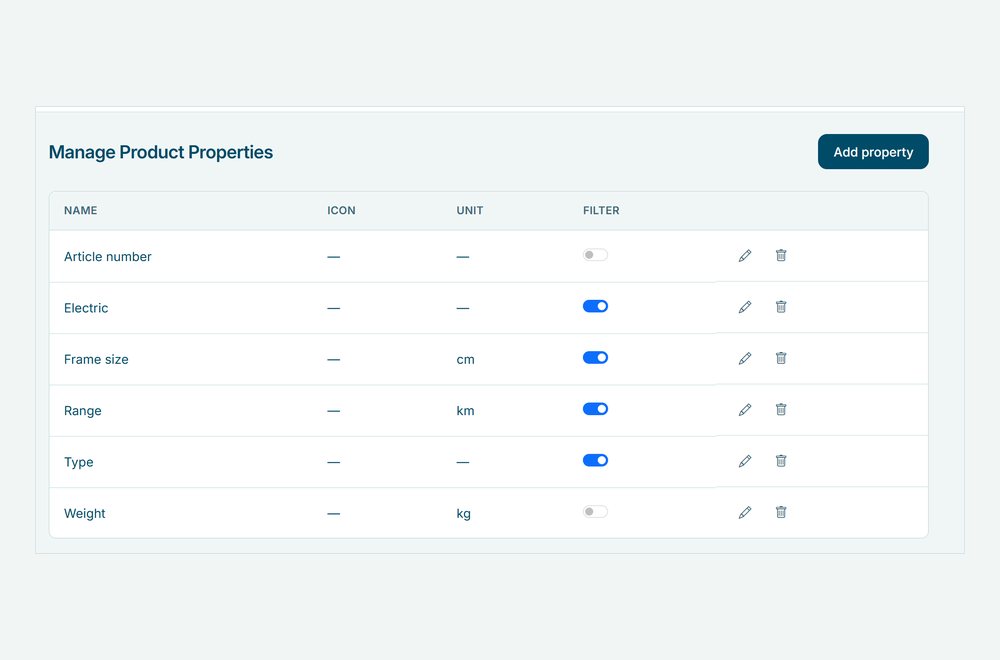
- Choose the filters. Every specification is a filter from the start. In the list of product properties, switch Filter off for one that does not help choosing, such as an article number, see product management.
- Customers tick what they need. Within one filter a product needs one of the ticked values, across filters it needs all of them. Nothing changes until they click Apply filters.
- They see what fits. The category shows only the matching products, and Clear all brings the full list back. A filter with only one value is hidden, because it does not help choosing.
Product filters in the real world
A few examples of what customers filter on:
| Rental type | Category | Filters |
|---|---|---|
| Bike rental | E-bikes | Type, frame size, range |
| Party rental | Tents | Size, number of guests, sides |
| Clothing rental | Suits | Size, colour |
| Tool rental | Machines | Power source, weight class |
See it in action
The filter next to a category in your shop, and the Filter switch per specification in your dashboard.
Frequently Asked Questions
Where do the filters come from?
From the specifications of the products in the category, and from their variants, such as sizes or colours. Each specification becomes a filter with the values your products have. There are no separate filter settings per category.
Can I leave a specification out of the filter?
Yes. Every specification has a Filter switch, which is on from the start. Switch it off for specifications that do not help choosing, such as an article number or a weight.
Does the filter work together with dates?
Yes. When customers pick dates first, the counts and the results only include the products that are free in that period.
Does it work in the booking widget on my own website?
Yes. The filter appears on the category pages of your hosted shop and in the booking widget, see website widget.