

Give every team member the access they need, and nothing more
In short
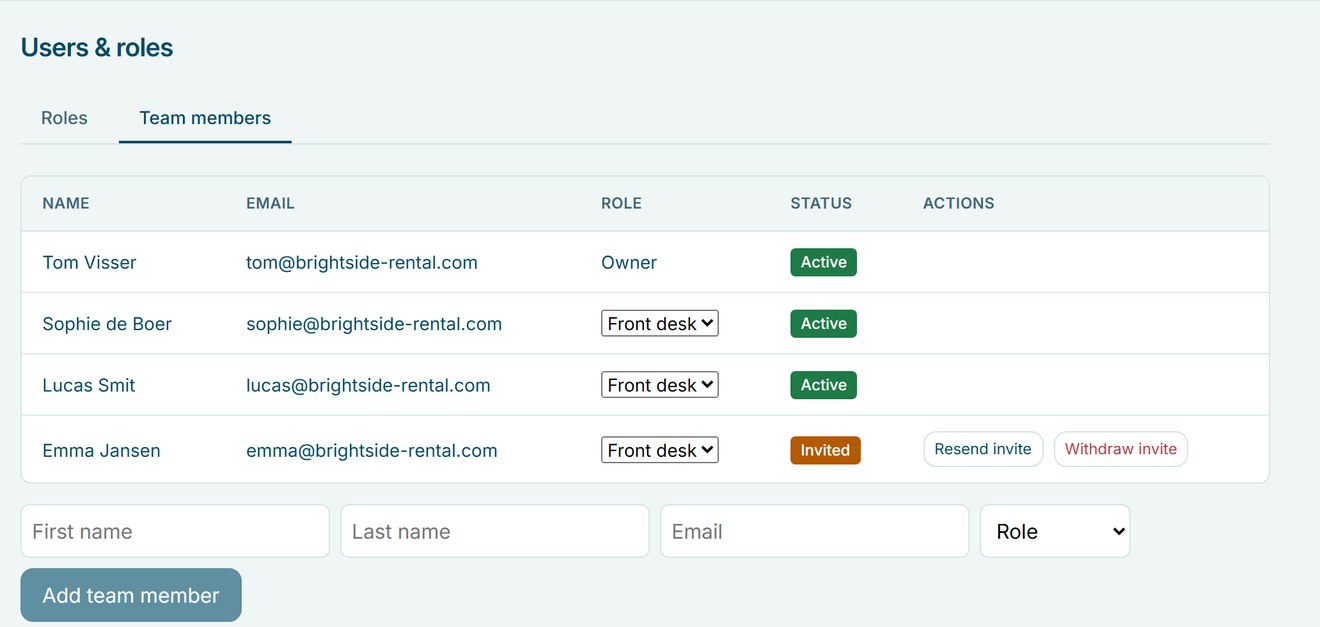
- Invite team members by email to your Be-Bookable dashboard.
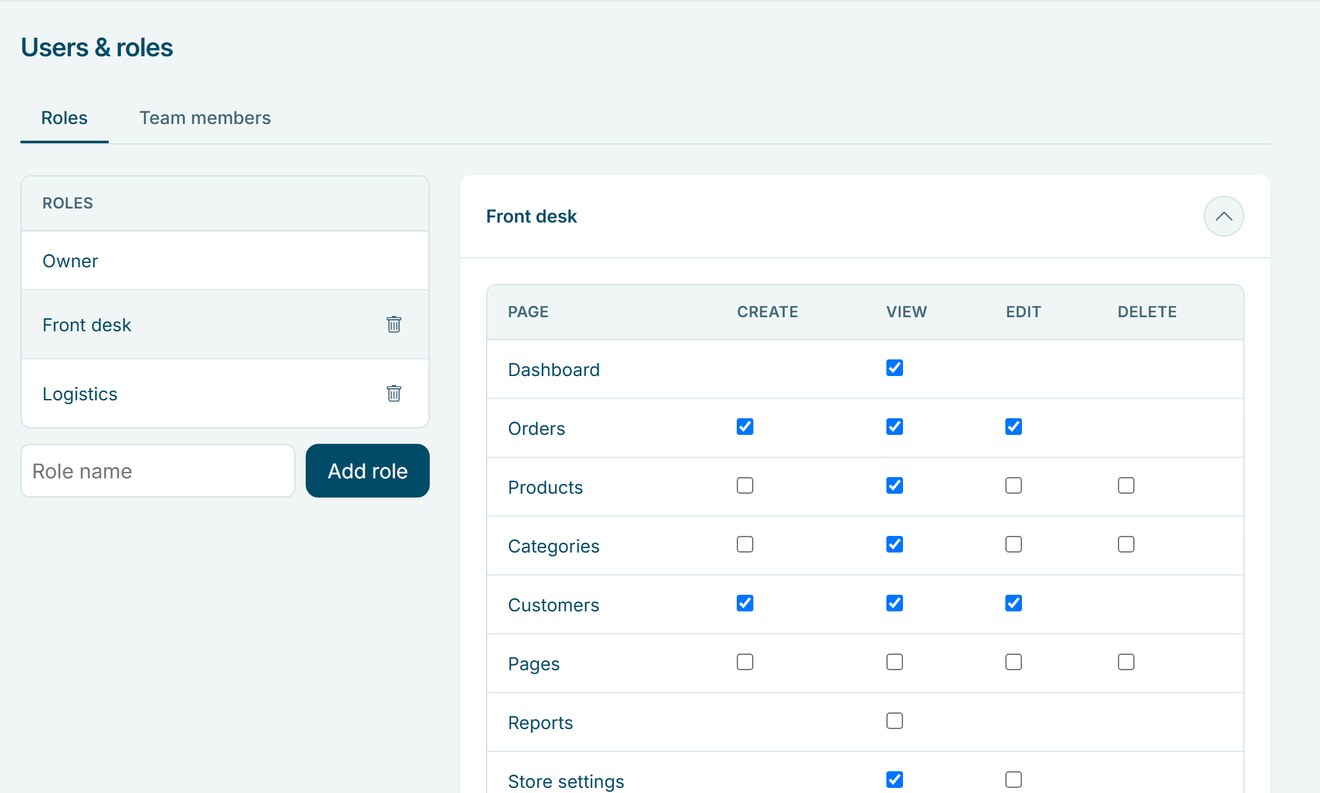
- Create roles such as Front desk or Logistics and choose per section what they can see and change.
- Integrations, team management and deleting orders stay with the owner.
Why users and roles matter
When more people help with bookings, everyone works in the same dashboard, but not everyone needs access to everything.
One shared dashboard
Your team works with the same orders, products and calendar, without shared passwords.
Access per section
Choose per role whether someone can view, create, edit or delete.
The owner stays in control
Only you manage integrations, the team and the roles.
How Be-Bookable solves it
- Create a role. Go to Users & roles, type a role name and click Add role.
- Set the permissions. For each section, such as Orders, Products, Customers or Reports, tick what the role can do: create, view, edit or delete. Then save.
- Invite a team member. Under Team members, enter a first and last name, an email address and a role, and click Add team member. They receive an invitation link that is valid for 7 days.
- They sign in. Your team member sets a password or signs in with Google or Facebook, and sees only the sections their role allows.
Users and roles in the real world
A few examples of roles rental businesses create:
| Role | Can | Cannot |
|---|---|---|
| Front desk | Create and edit orders and customers, view products | Change products or shop settings |
| Logistics | View and update orders, view products | See reports or edit customers |
| Warehouse | Edit products and stock | See revenue in reports |
| Bookkeeper | View reports and orders | Change orders or products |
| Seasonal staff | View the dashboard and orders | Change anything |
See it in action
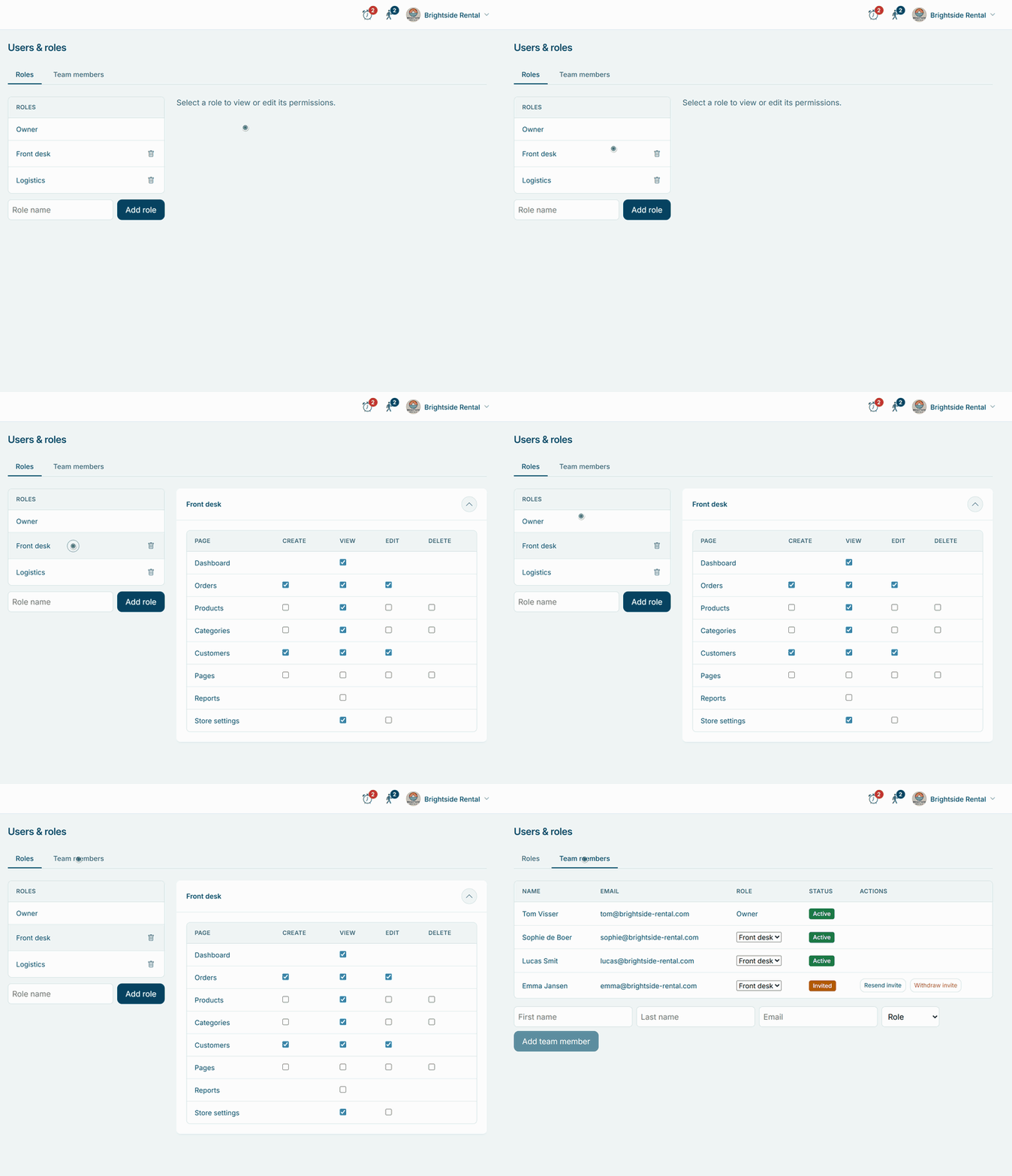
Roles with permissions per section, and every team member with their role and status.
Frequently Asked Questions
Is there a limit to the number of team members?
No. You can invite as many team members as you need, at no extra cost.
What can only the owner do?
Manage integrations, manage team members and roles, and delete orders. Integrations include online payments with Mollie as well as shipping with Sendcloud.
What happens when an invitation expires?
The link is valid for 7 days. Use Resend invite to send a new link; the old link then stops working.
Can I remove a team member?
You can withdraw an invitation as long as it hasn’t been accepted. Removing an active team member isn’t possible yet; give them a role with limited access instead.