
All your rental items in one place, from price to stock
In short
- Add products with photos, a description and rental prices from minutes to weeks.
- Set the stock, the minimum and maximum per booking, buffer time, delivery and pickup options and a deposit per product.
- Combine products into a bundle, or import and export your whole range at once.
- Offer one product in several sizes, colours or types, each with its own stock.
Why product management matters
A clear catalogue prevents double bookings and wrong prices, and you no longer need a separate spreadsheet.
One place for everything
Stock, prices and photos live in one place, so your shop always matches your dashboard.
Prices that fit your rentals
Rent per minute, hour, day or week, with fixed options such as a weekend, and a discount for more units or more days.
No double bookings
Be-Bookable counts what is already booked each day and only offers what is still available.
How Be-Bookable solves it
- Add a product. Go to Products and click Add product. Give it a name, a description, up to 10 photos and one category.
- Set rental prices. Under Rental prices, add options such as 1 day, 2 days or 1 week, each with its own price. Give an option a promo price with a start and end date, and it applies by itself in that period. Add a tiered discount for customers who rent more units or more days, such as 10% from 5 units or from 3 days. A season price is the regular price in a period: higher or lower, and not shown as a promo. Renting per night? See stays per night.
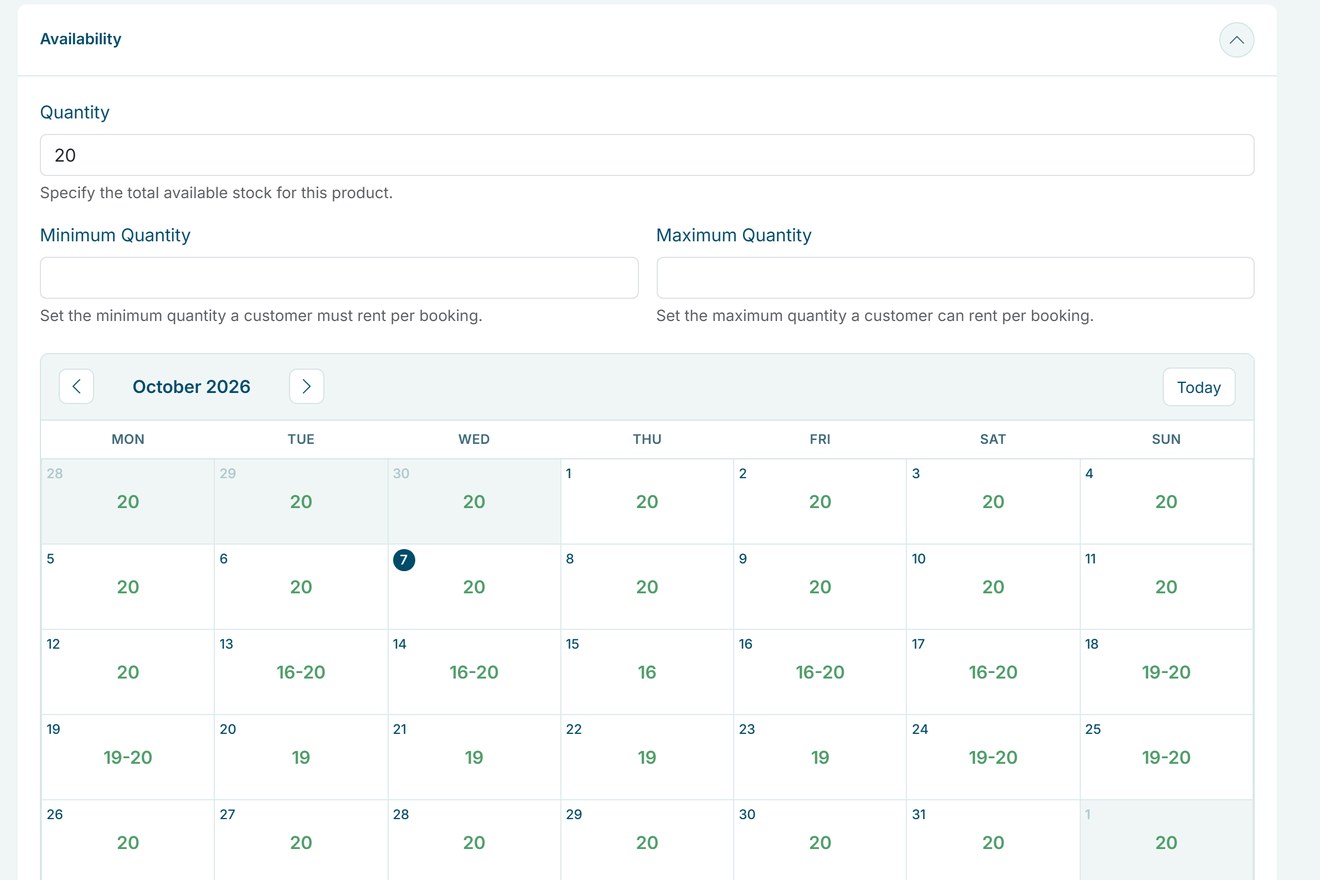
- Set stock and booking rules. Enter how many you have, the minimum and maximum per booking, and buffer time before and after each rental for cleaning or transport. The availability calendar shows how many are free each day. Add weight and dimensions for parcel shipping, and give every physical unit its own barcode, see barcode scanning. Is a product away without an order, for maintenance or a booking elsewhere? Add a busy period.
- Add variants. Rent the same item in several sizes or colours? Under Variants, give the product a variant type such as Size and add the values, each with its own stock and optionally a surcharge or a photo. Customers pick the variant on the product page.
- Sell items too. When you add a product, switch on Consumable for something the customer buys and does not bring back, such as earplugs or gas bottles. Customers can order it on its own or as an accessory with a rental product. An existing rental product cannot be turned into a consumable.
- Show it in your shop. Switch on Visible on the website and the product appears in your shop. Add product properties for details such as size or weight, and recommended accessories for extras.
Product management in the real world
A few examples of how rental businesses set up a product:
| Rental type | Product | How it is set up |
|---|---|---|
| Party rental | Chair and table set | Price per day, 120 in stock, at least 10 per booking |
| Bike rental | E-bike | Prices per hour and per day, buffer time for charging |
| Camping gear | Dome tent | Options for 1 day, 2 days and 1 week, with a summer promo price |
| Photo and video | Content creator kit | A bundle of camera, lens and microphone with its own price |
| Clothing rental | Evening dress | Variants for sizes 36, 38 and 40, each with its own stock |
| Tool rental | Rotary hammer | Price per day, 30 minutes of buffer time for cleaning |
| Holiday rental | Holiday home | Price per night, season prices, at least 3 nights |
See it in action
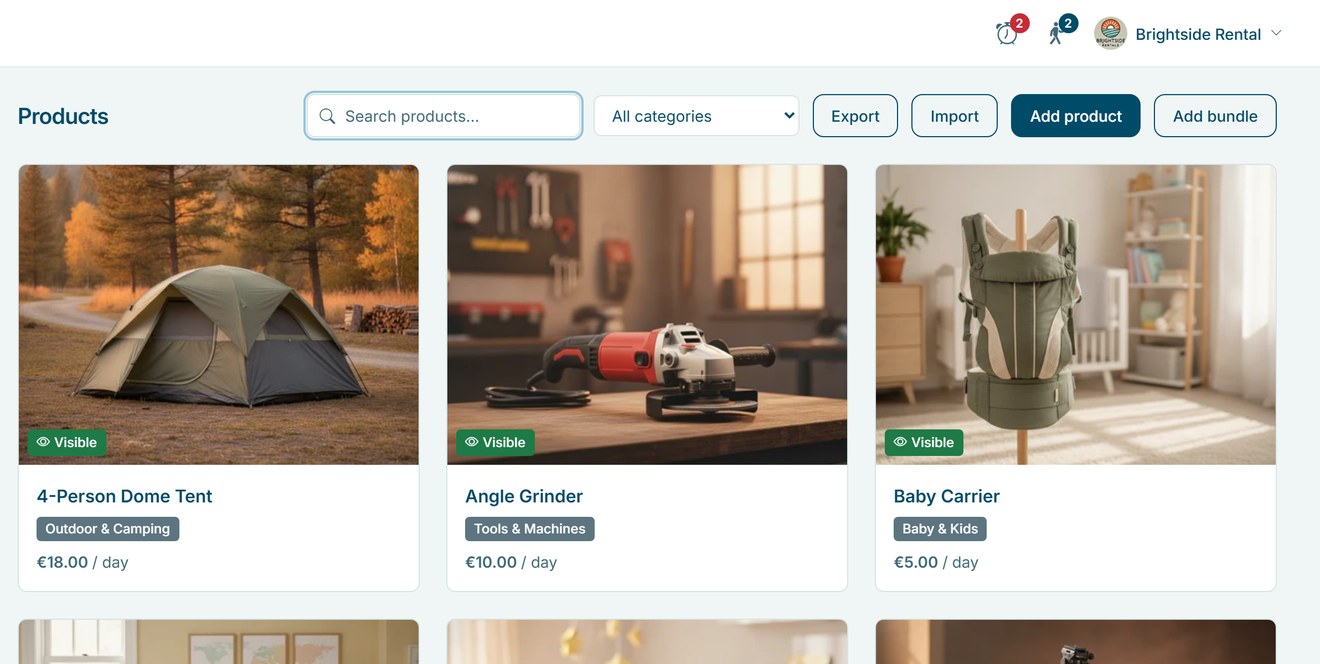
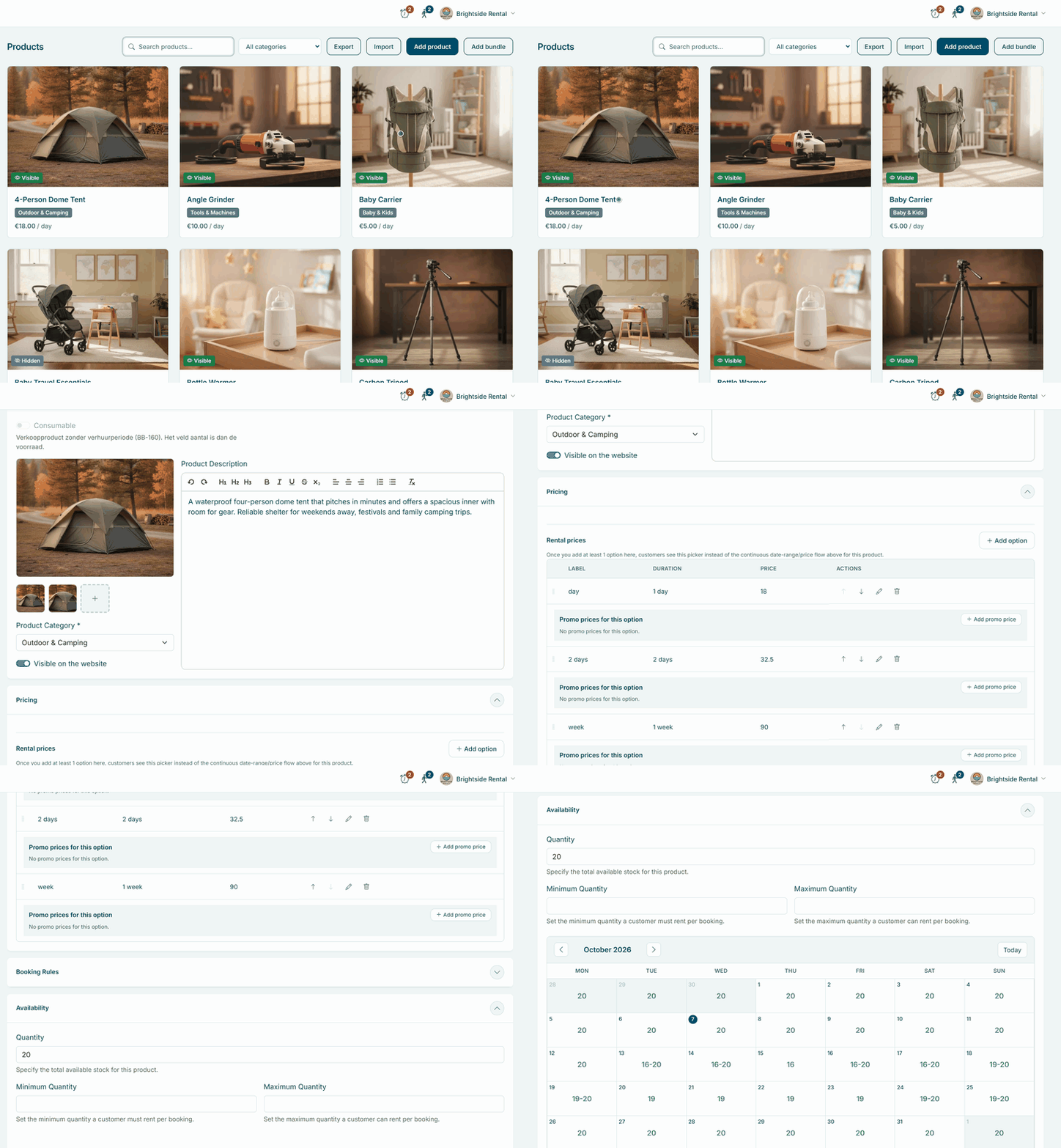
All your products in one overview, and per product a calendar with the stock that is free each day.
Pick a frame size in a demo shop: the comfort e-bike at PedalNL
Frequently Asked Questions
Can I add or update many products at once?
Yes. Export your products to a CSV or Excel file, edit them and import the file again to create or update products in one go. Photos and promo prices you add in the product itself.
Can a product be in more than one category?
No. Each product belongs to one category. Customers also find every product through the search in your shop.
What happens when I hide a product?
It disappears from your shop but stays in your dashboard with all its settings. You can show it again at any time.
Can customers choose a size or colour?
Yes. Give the product variants, for example the sizes S, M and L or the colours red and blue. Every variant has its own stock and can have a surcharge and its own photo. Customers pick the variant on the product page.