

Create shipping and return labels straight from the order
In short
- Connect your own Sendcloud account, no developer needed.
- Pick a carrier per order and create the shipping and return label in one click.
- The order status follows the parcel: on its way, delivered and back.
Why a shipping integration matters
In rental, every parcel goes out and has to come back. Typing addresses into a carrier website twice for each order costs time and invites mistakes.
No retyping
Your address and the customer’s address come straight from the order.
Return label included
Every label comes with a return label, ready to put in the box.
Status follows the parcel
Orders move to On its way, In use and Returned by themselves.
How Be-Bookable solves it
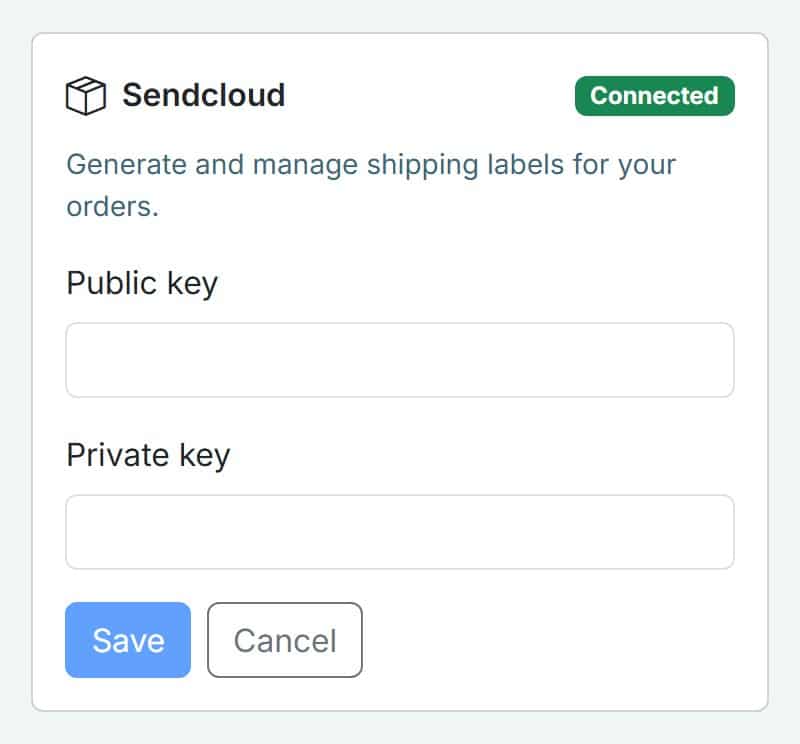
- Connect Sendcloud. In your dashboard, open Integrations, click Connect on the Sendcloud card and paste the public and private key from your Sendcloud account. You can update the keys at any time.
- Check your shop address. Your shop name, address, phone number and order email are the sender on every label. Be-Bookable tells you if something is missing before you create one.
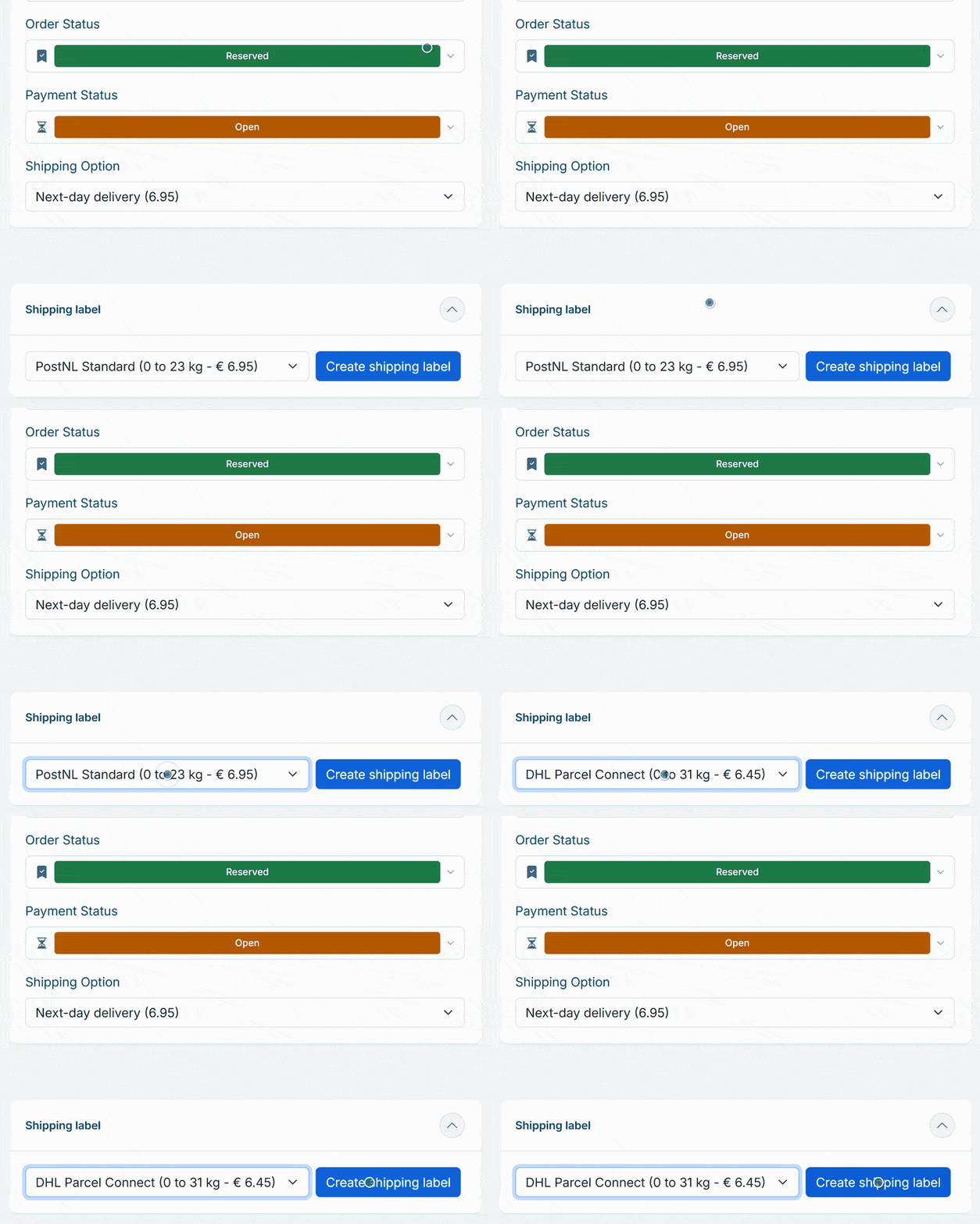
- Choose a carrier per order. On the order, the Shipping label panel lists the carriers and services in your Sendcloud account for that address, with Sendcloud’s price. The carriers you use most come first.
- Create the label. One click creates the shipping label and a return label, combined in one PDF that downloads straight away. You can download it again later from the same order. Does the order go in several parcels? Enter the number of parcels and every parcel gets its own shipping and return label.
- Get a reminder on the shipping day. With Ship notice on under Integrations, you get one email at 09:00 on the shipping day with the orders that have to go out that day: delivery address, products and the packing slips as a PDF. With notifications on your phone, you also get a push notification. The shipping day is the start of the rental minus the longest Time kept free before rental of its products, at least one day before. Confirmed orders then move to Prepare shipment.
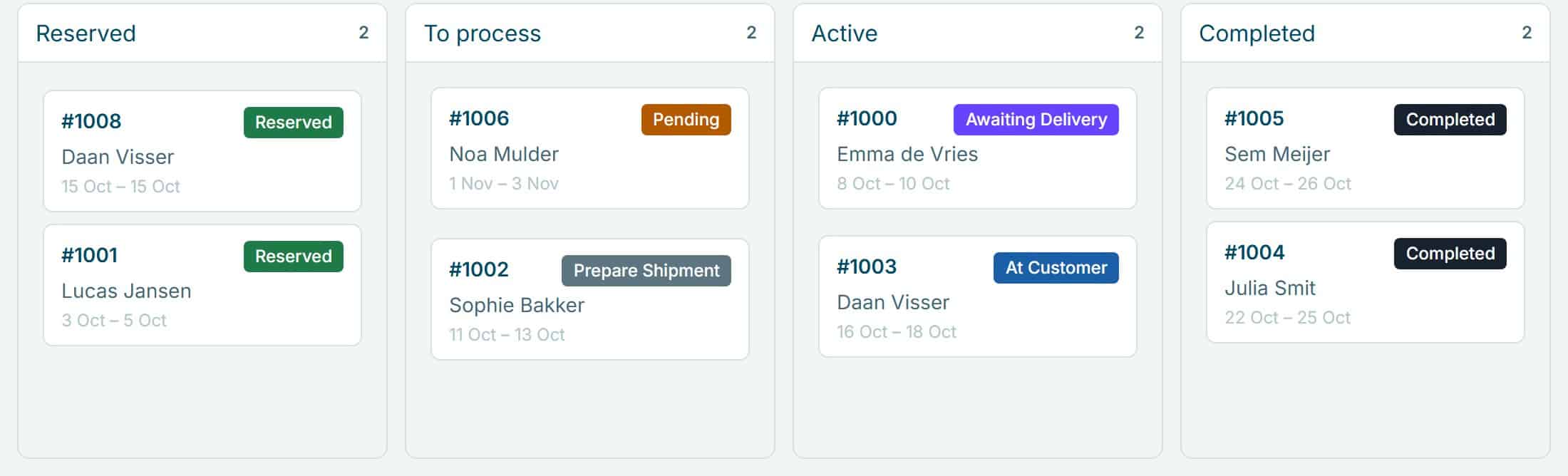
- Let the status follow the parcel. When the carrier has the parcel, the order moves to On its way; on delivery to In use; and when the return parcel arrives, to Returned. You see this in your order overview, and if you switch on the matching status emails, your customer gets a message at each step.
Shipping in the real world
A few examples of rental businesses that ship by parcel:
| Rental type | What they ship | What it solves |
|---|---|---|
| Party rental | Tableware and decoration sets | The return label is already in the box, so sets come back without extra arrangements. |
| Camera rental | Lenses and accessories | You see when the kit is with the customer and when it is back. |
| Tool rental | Hand tools and accessories | A day of labels without copying a single address. |
| Clothing rental | Outfits for one event | The customer sends the outfit back with the label that came with it. |
See it in action
Paste your Sendcloud keys under Integrations, then follow every shipment on the workflow board of your orders.
Frequently Asked Questions
Do I need my own Sendcloud account?
Yes. You connect your own Sendcloud account, and Sendcloud bills the labels under your own plan. Be-Bookable adds no costs.
Which carriers can I use?
The carriers and services that your Sendcloud account offers for the destination, such as PostNL, DHL or DPD. Be-Bookable shows them per order.
Are labels created automatically?
No. You create each label from the order yourself, when the items are ready to go. That way nothing ships before you have checked the order.
Can I use every shipping service in my Sendcloud account?
The services that fit the parcel. Give your products a weight and Be-Bookable adds it up per order, so Sendcloud shows the services that can carry that weight. A product without a weight counts as 10 kg, and you can change the weight per parcel before you create the label. Because your shop takes orders from customers in your own country, labels are for shipping within that country.
Do I need Sendcloud for delivery and pickup options at checkout?
No. Delivery and pickup options work on their own, with a fixed price or, if you deliver yourself, a price per zone or distance. Customers choose one at checkout, and you pick the carrier later, when you create the label.