

Add rentals to Magento without an extension
In short
- Add two lines of code to a CMS block or page.
- Customers pick dates and book rentals on your store.
- Rentals run in Be-Bookable, next to the products you sell in Magento.
Why add a rental shop to Magento
Magento is built to sell products, not to hand them out and get them back. Be-Bookable handles the dates, availability and returns, on a page of your own store.
No extension
Nothing to install or upgrade along with Magento.
Built for renting
Availability per day or time slot, so an item can’t be booked twice.
Keep selling as usual
Your Magento catalogue, cart and checkout stay as they are.
How to add Be-Bookable to Magento
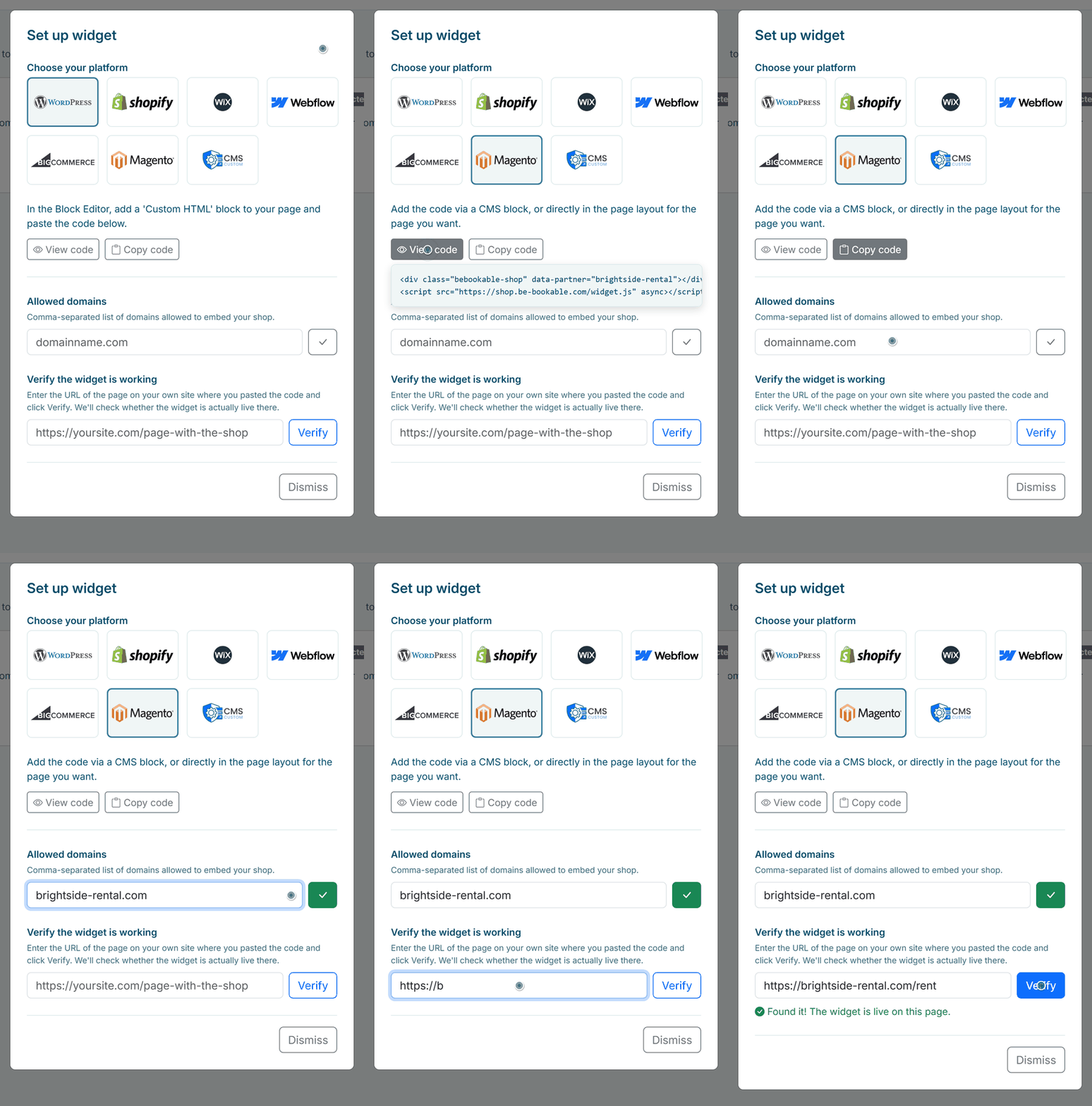
- Open the widget settings. In your Be-Bookable dashboard, go to Integrations and click Set up widget on the Website Embed card.
- Choose Magento. Click the Magento tile. The dialog shows where the code goes: “Add the code via a CMS block, or directly in the page layout for the page you want.”
- Copy the code. Click Copy code. It is two lines: a placeholder for your shop and the Be-Bookable script.
- Add your domain. Enter your website’s domain under Allowed domains and save it. If your site works both with and without www, add both.
- Check that it works. Paste the address of the published page and click Verify. Be-Bookable opens the page and tells you whether the shop is live there. From then on, bookings from your site arrive in your order overview like any other order.
The code is the same on every platform. Everything the widget does is explained on the website widget page.
What runs where
Your Magento site stays yours. Be-Bookable only runs the rental part:
| What | Where it lives |
|---|---|
| Products you sell, cart and checkout | Your Magento store |
| Theme, menu and CMS pages | Your Magento store |
| Rental products, prices and availability | Be-Bookable, managed in your dashboard |
| Bookings and payments | Be-Bookable and Mollie, in your order overview |
| Order and status emails | Be-Bookable, in your own wording |
See it in action
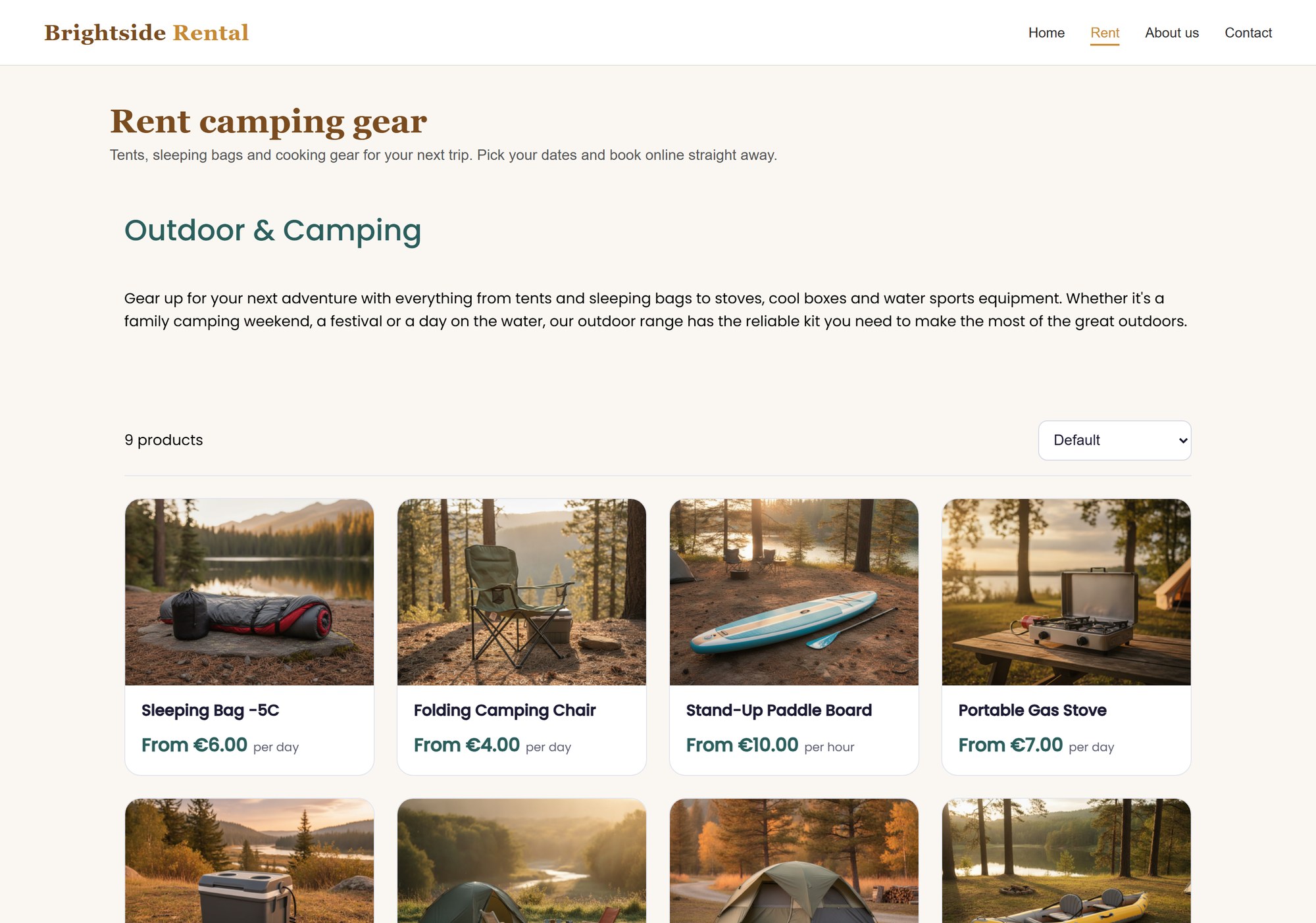
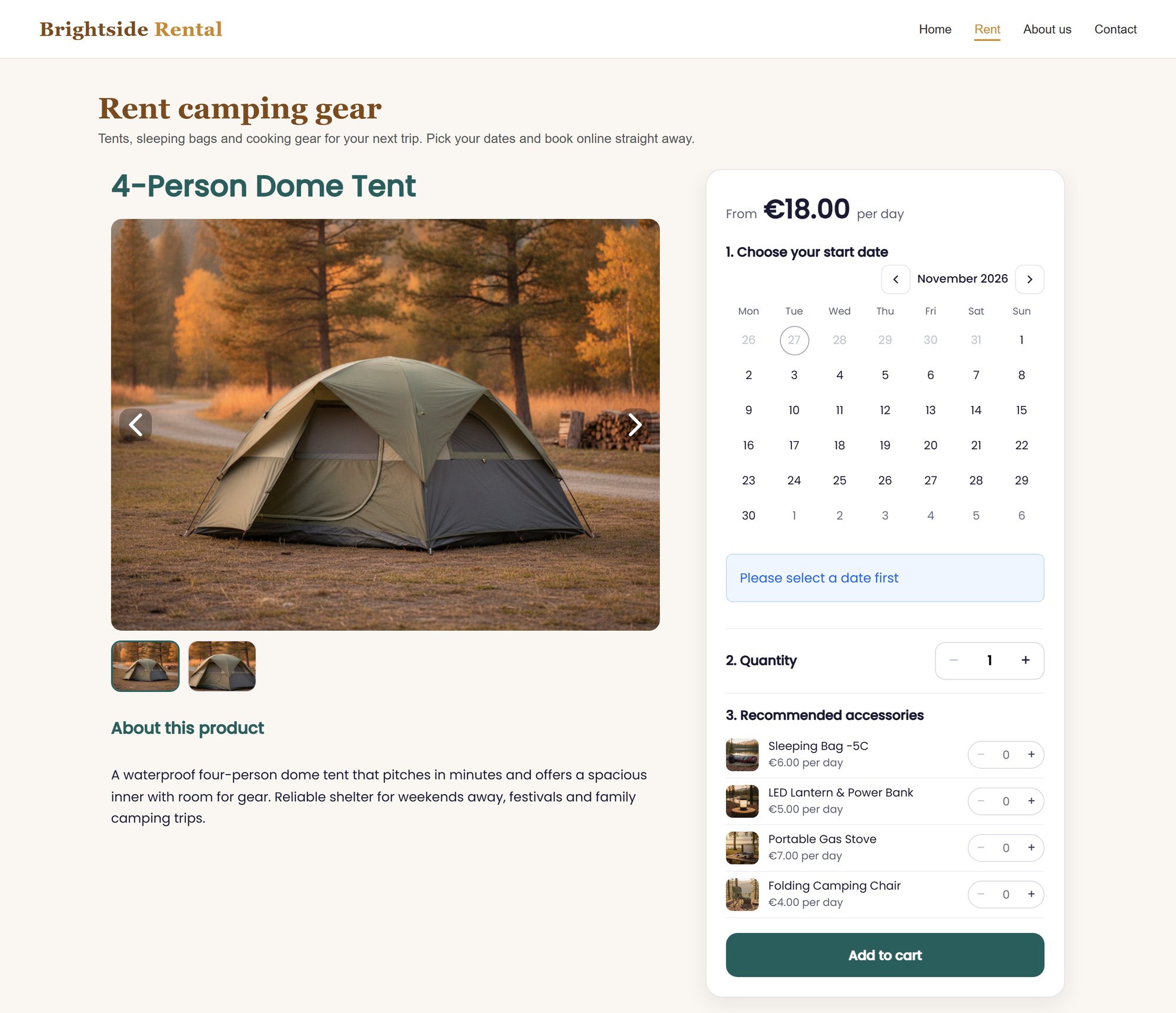
The Brightside demo shop on an example website: a category page and a product page with the booking calendar, under the site’s own menu.
Frequently Asked Questions
Do I need a Magento extension?
No. You add two lines of code to a CMS block or page. There is no extension or module to install.
Do rentals go through the Magento checkout?
No. Rentals are booked and paid in the Be-Bookable shop on your page, with their own cart. Your Magento catalogue and checkout keep working as before. Products are not synced between the two.
The editor removes my code. What now?
Some editors strip script tags. Paste the code in the HTML or source view of the editor, or in the page layout, so both lines stay intact. Verify tells you whether the code is really on the page.
How do customers pay?
Online payments go through Mollie. Because Mollie doesn’t open inside another website, the payment opens in a new tab. When it is done, the customer sees the thank-you page in the shop on your site. If the browser blocks the new tab, the whole page goes to Mollie instead. More on this under online payments.
Can I track bookings in Google Analytics?
Yes, if your site uses Google Tag Manager. The shop sends the events view_item, add_to_cart and purchase to the dataLayer of your page, but only on domains in your allowed list.