
Keep customers informed at every step, with emails in your own words
In short
- There is an email for every order status, from Pending to Returned.
- Be-Bookable sends it automatically when an order reaches that status, if the email is switched on.
- Be-Bookable adds the order summary, so you only write the message.
Why customer emails matter
Renters want to know where their booking stands. A short email at each step answers that before they have to ask.
Fewer questions
Customers hear about every step without having to call or email you.
Your own words
You write every subject and message yourself, in your own tone and language.
No manual sending
Be-Bookable sends the email automatically as soon as an order changes status.
How Be-Bookable solves it
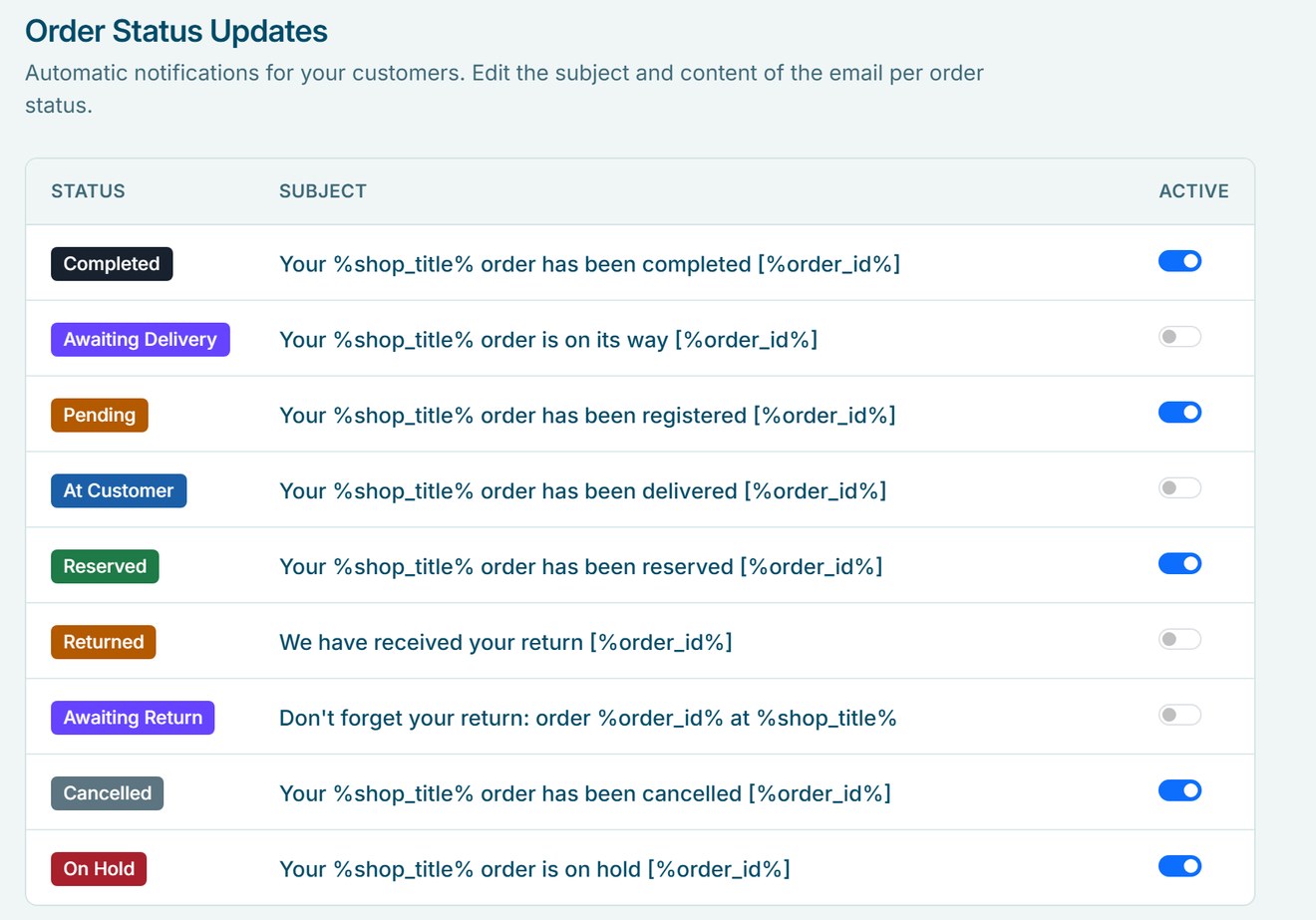
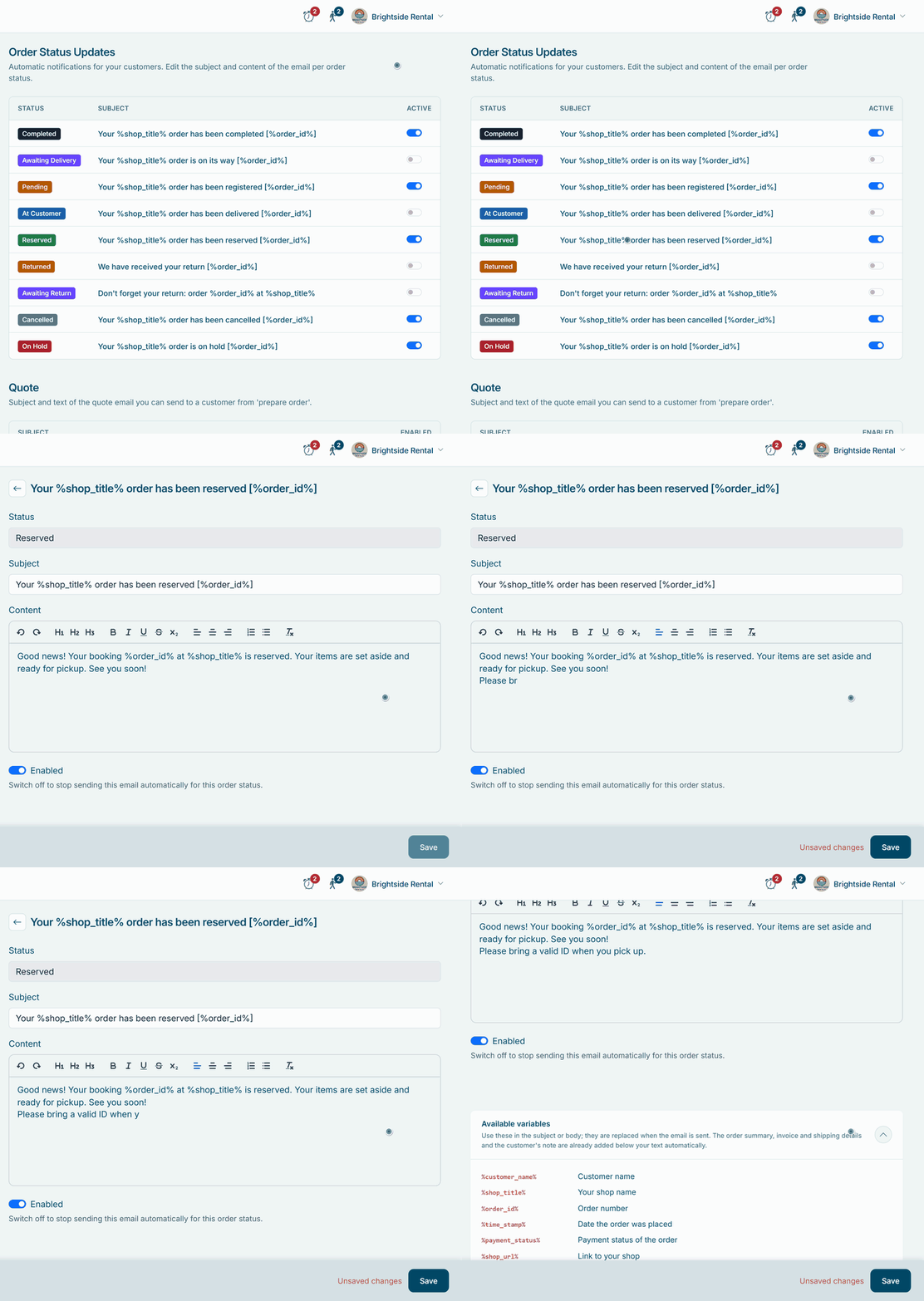
- Open Texts and emails. In your dashboard, go to Texts and emails. On the Emails tab you find an email for every order status.
- Write the message. Click a status to edit the subject and the text. Add variables such as
%customer_name%or%order_id%and Be-Bookable fills them in for every order. - Switch on what you need. Use the Active switch to choose which statuses send an email. A status without an active email sends nothing.
- Add reminders. With reminder emails on, Texts and emails also has a pickup reminder and a return reminder. They go out on the morning you choose, 1 to 7 days before the rental starts and ends.
- Let it run. When an order in your orders reaches a status, the customer gets that email straight away. Below your text, Be-Bookable adds the order summary, the payment status and the customer’s details. Replies go to the contact email address in your shop settings.
Customer emails in the real world
A few examples of what rental businesses send per status:
| Order status | When it is sent | What you might write |
|---|---|---|
| Pending | Right after checkout | We have your booking, and how to complete the payment |
| Reserved | When you confirm the booking | Pickup time, address and what to bring |
| Ready / on its way | When the order ships, automatically with Sendcloud | Your gear is on its way |
| Awaiting return | When you set it near the end of the rental | Return time and how to pack everything |
| Returned | When the items are back | Thanks for renting, see you next time |
See it in action
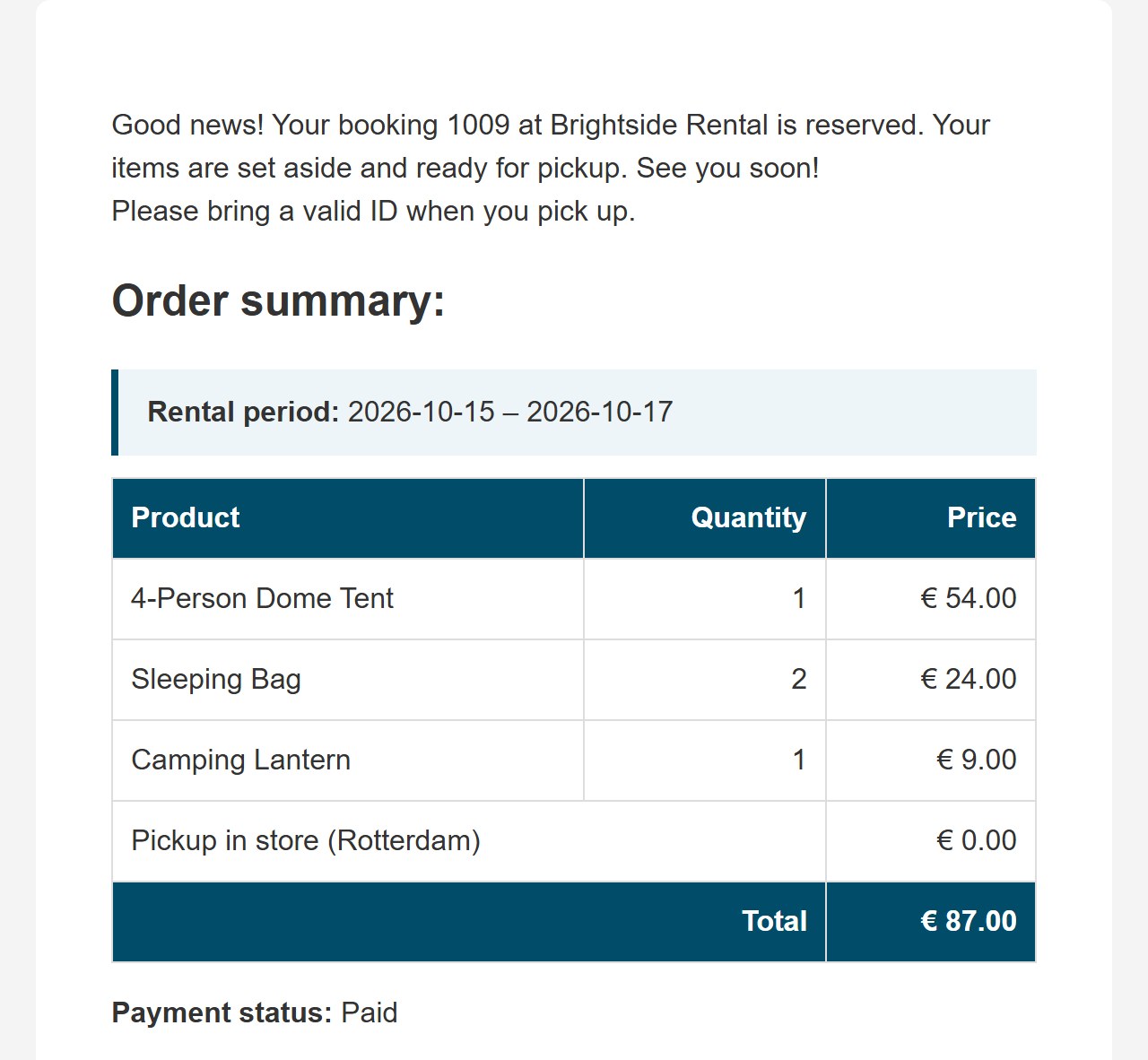
The customer gets your text with the order summary below it. In your dashboard, every status has its own email and switch.
Frequently Asked Questions
Can customers get a reminder before the return date?
Yes. Switch on reminder emails under Integrations and customers get an email shortly before pickup or delivery, and another one shortly before the return, at 09:00 on the day you choose. You write both texts under Texts and emails, like your other emails. More on reminder emails.
What does Be-Bookable add to my email?
Below your text, every status email shows the order summary with the rental period, products, prices and total, the payment status, and the customer’s invoice and shipping details. It ends with your shop name and your contact email address. These parts are in the language the customer booked in: German, English, French or Dutch. More on language settings.
Can I send a customer a personal message?
Yes. Add a customer note to the order and the customer gets it by email, together with the order summary. For a price proposal, use Send quote on the order. That email has its own subject and text under Texts and emails.
How do the emails look?
Clean and simple: your text, the order summary in a table and your shop name as the signature. You can format your text with headings, bold, italic and lists. Logos, images and links in the email are not available yet.
Can I send a pickup code for a key safe?
Yes. With pickup codes on, the code goes into the reminder before pickup, and from that day the customer also finds it in their customer account. You can put it in a status email yourself with %pickup_code%. More on pickup codes.
Can a rental agreement go with the email?
Yes. With the rental agreement on, the order confirmation carries the agreement as a PDF, next to the invoice. More on the rental agreement.
Can I write my emails in more than one language?
Yes. If your shop offers more than one language, every status email has a tab per language: German, English, French or Dutch. The customer gets the email in the language of the order. If you leave a tab empty, the customer gets your text in the main language. More on language settings.