
Let customers choose pickup or delivery, at the price you set
In short
- Create your own delivery and pickup options, such as pickup in store or next-day delivery.
- Give each option a fixed price, make it free, or charge per zone or distance.
- Customers pick one at checkout and the total updates straight away.

Why delivery and pickup options matter
Rental gear has to reach the customer somehow. Settle how, and at what cost, while they book, not afterwards by phone.
No surprise costs
Customers see every option with its price before they book, so the total is the total.
No follow-up calls
The delivery choice comes in with the order. You know straight away whether to prepare a pickup or a delivery.
Fits the way you work
Pickup at the counter, your own van or a parcel service: name each option the way you work.
How Be-Bookable solves it
- Open Shop Settings. In your dashboard, go to Shop Settings and open the Delivery and pickup options panel.
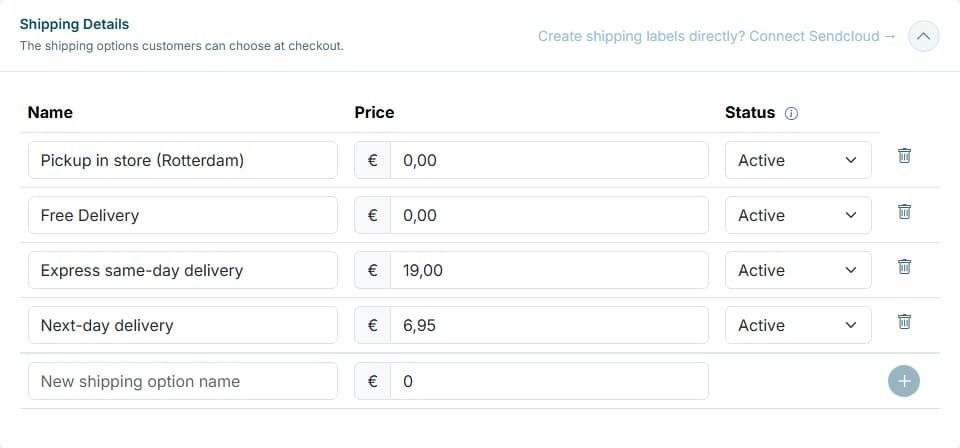
- Add your options. Type a name, such as “Pickup in store” or “Next-day delivery”, enter a price including VAT and click Add delivery option. A price of €0 makes the option free. Add as many options as you need.
- Charge by address (optional). Delivering yourself? With delivery costs per zone or distance on, an option can cost a price per zone of postcodes, or a price per kilometre from your shop postcode.
- Choose what customers see. Active options appear at checkout right away. Archive an option to hide it from customers. It still shows on existing orders.
- Choose per product. Mark one option as the base option, such as pickup in store. It always applies. In a product, switch off the other options that don’t fit, for example sending a bouncy castle by post. The product page then shows which options apply, and checkout only offers options that fit every product in the cart.
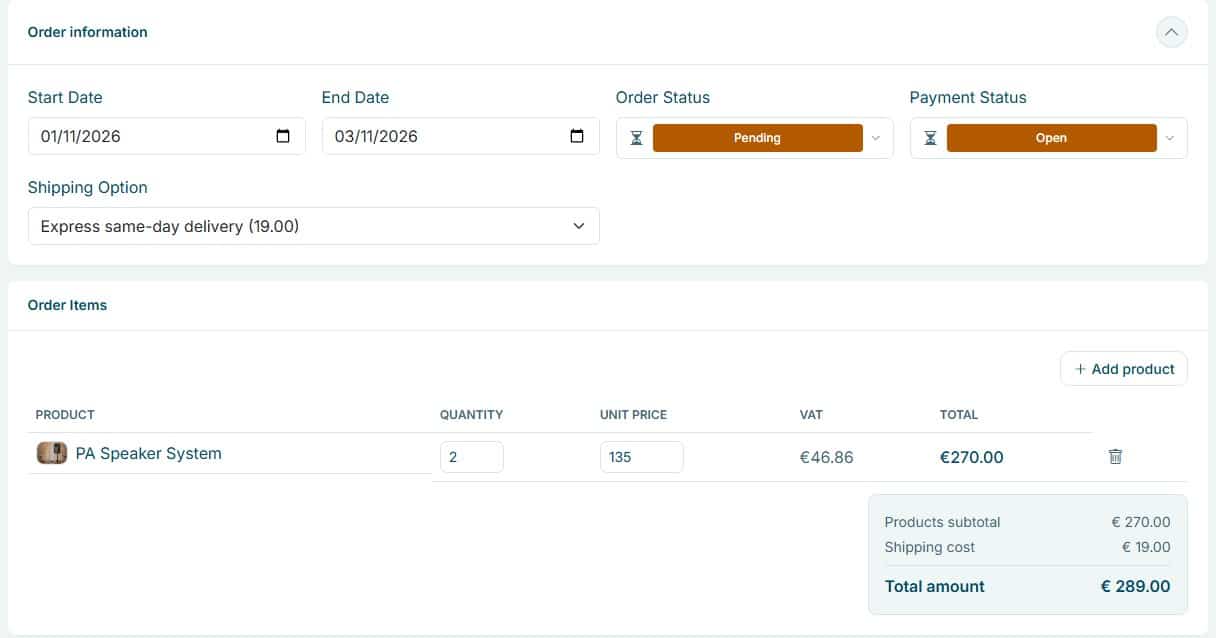
- Customers choose at checkout. Under Delivery method, customers see each active option with its price. Your base option comes first and is selected by default, and the order summary updates when they pick another.
- See it on every order. The chosen option and the delivery cost are on the order in order management and in the order details of your customer emails. You can still change the option on the order; the total is recalculated when you save.
Delivery and pickup options in the real world
A few examples of options rental businesses offer:
| Rental type | Pickup option | Delivery option |
|---|---|---|
| Party rental | Pickup at the warehouse (€0) | Delivery and collection in the region (€45) |
| Camera rental | Pickup in store (€0) | Next-day courier delivery (€6.95) |
| Bike rental | Pickup at the shop (€0) | Delivery to your holiday address (€15) |
| Silent disco | Pickup (€0) | Sent by parcel service (€12.50) |
| Tool rental | Pickup at the depot (€0) | Delivery on site (€25) |
See it in action
Set your options once in Shop Settings. Every order shows the chosen option and its cost.
Frequently Asked Questions
Can I offer free pickup?
Yes. Give the option a price of €0. Customers see it at checkout as free, next to your paid delivery options.
Can I charge different prices per region?
Yes. Switch on delivery costs per zone or distance under Integrations. Then choose per option whether the price is fixed, per zone of postcodes such as 6800-6899, or per kilometre from your shop postcode, with a free distance and a maximum if you like. Customers see the delivery price as soon as they enter their postcode. If you do not deliver there, the option disappears.
Can the delivery or pickup option be changed after booking?
Customers can’t change it themselves. You can: open the order, pick another option and save. The delivery cost and the order total are recalculated.
Do I need Sendcloud for this?
No. Delivery and pickup options work on their own. If you ship parcels, you can also connect Sendcloud. You then create a shipping label straight from the order, together with a return label for the way back, and choose the carrier per order. An order that goes in several parcels gets a label and a return label per parcel, with the weight taken from your products.