
Only take bookings when you’re there to hand them over
In short
- Set opening hours per weekday, or mark a day as closed.
- Add closure periods for holidays, with a note so your team knows why.
- Your shop only offers pickup and return moments that fall within your hours.
Why opening and closing times matter
A booking is only useful if someone is there when the customer comes to pick it up or bring it back.
No locked doors
Customers only pick moments when you’re there to hand over or take back a rental.
Holidays sorted in advance
Block a holiday or training day once, and your shop stops taking bookings for it.
No rescheduling
No more calling customers to move a booking that landed on a day you’re closed.
How Be-Bookable solves it
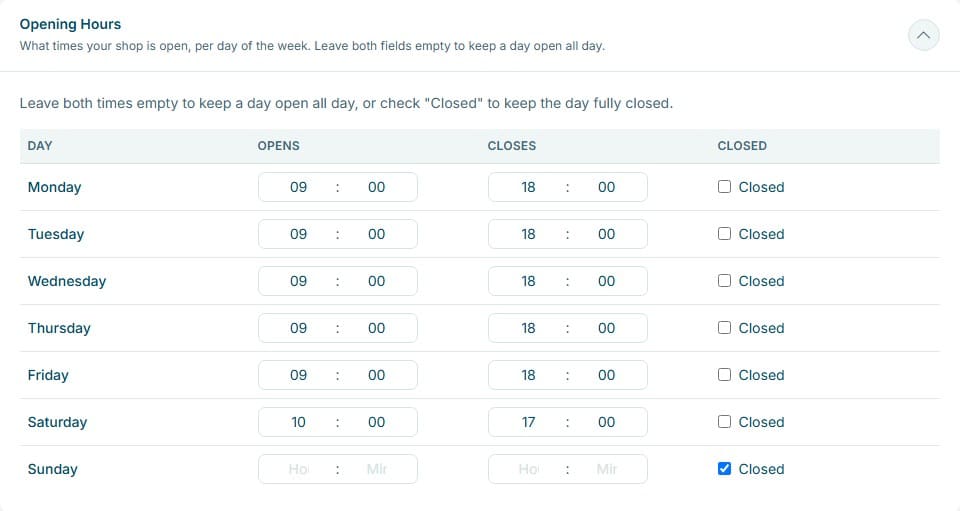
- Set your weekly hours. In Shop Settings, give each weekday an opening and a closing time. Tick Closed for days you’re shut, or leave both times empty to stay open all day.
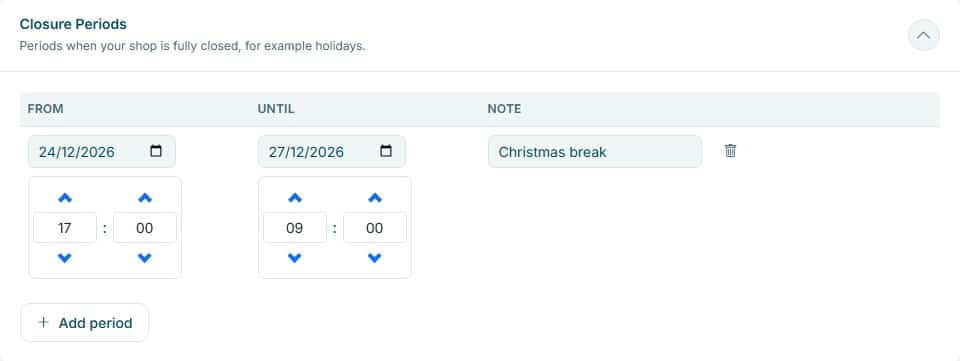
- Add closure periods. For a holiday or a training day, add a period with a start and end date and time, plus a note such as “Christmas break”.
- Give a category its own hours (optional). A category can have its own opening hours, for example only Saturday from 10:00 to 12:00. They replace your shop hours for the products in that category. Closure periods always apply on top.
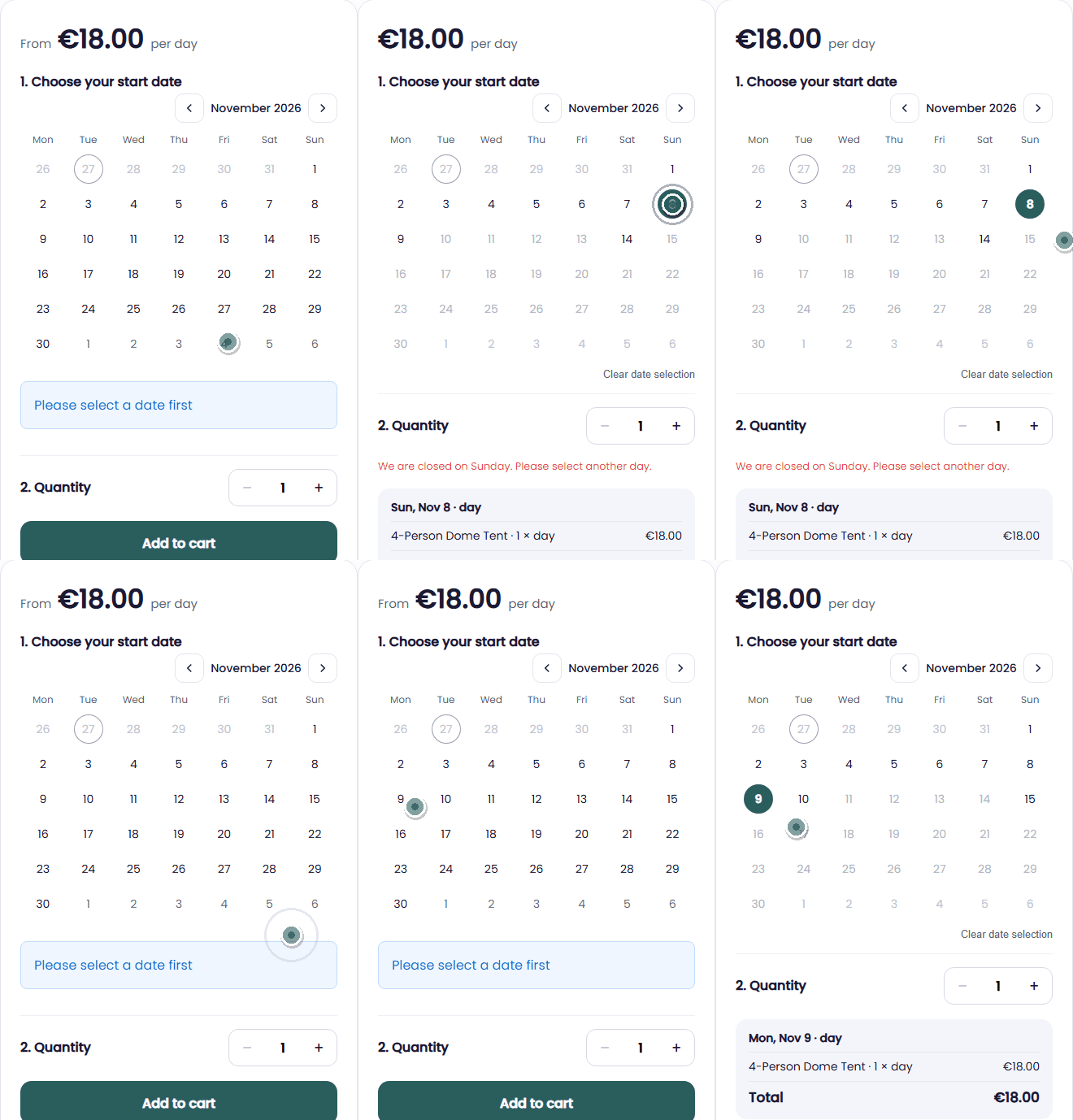
- Your shop follows your hours. For hourly rentals, customers only see start times within your hours. For day and week rentals, the pickup and return day must be open days; a closed day in between doesn’t stop the booking. Your booking blocks keep running on the clock, closing hours included.
Opening hours in the real world
The same settings fit very different rental businesses. A few concrete setups:
| Rental type | Typical setup | What it solves |
|---|---|---|
| Event & party | Open Monday to Saturday, Sunday closed. | Pickups and returns never land on the day nobody is in the warehouse. |
| Bike rental | Open daily from 09:00 to 18:00, rented by the hour. | Customers only see start times while the shop is staffed. |
| Specialist equipment | Its own category hours: Saturday from 10:00 to 12:00 only. | Kit that needs a briefing is only handed over when your expert is in. |
| Seasonal business | A closure period from 24 December to 2 January. | No bookings during the break, and the note tells your team why. |
See it in action
In your dashboard you set the hours for each weekday and add closure periods. Your shop picks them up straight away.
Pick a time within the opening hours in a demo shop: a meeting room at ZaalVrij
Frequently Asked Questions
What is the difference between opening hours and closure periods?
Opening hours are your regular week, for example Monday to Friday from 09:00 to 18:00. Closure periods are one-off breaks, such as a holiday or a training day, and apply on top of your weekly hours.
Can a rental run through a day I’m closed?
Yes. For day and week rentals only the pickup and return day have to be open days. A closed Sunday in the middle of a week rental doesn’t stop the booking and simply counts as part of the rental.
Can I set different hours per category?
Yes. A category can have its own opening hours, which replace your shop hours for the products in it. Closure periods still apply to every product.
What happens if I leave a day’s times empty?
Then that day is open all day. To close it, tick Closed for that day.
Can customers pick up outside my opening hours?
Yes, with a key safe or a code lock that you set up yourself. With pickup codes on, the customer gets the code shortly before pickup, in the reminder email and in their customer account. The pickup day in your shop still follows your opening hours. More on pickup codes.
Can customers get a reminder of the pickup and return time?
Yes. With reminder emails on, customers get an email before pickup and before the return. Add %shop_address% and %opening_hours% to the text, so they know where and when. More on reminder emails.